
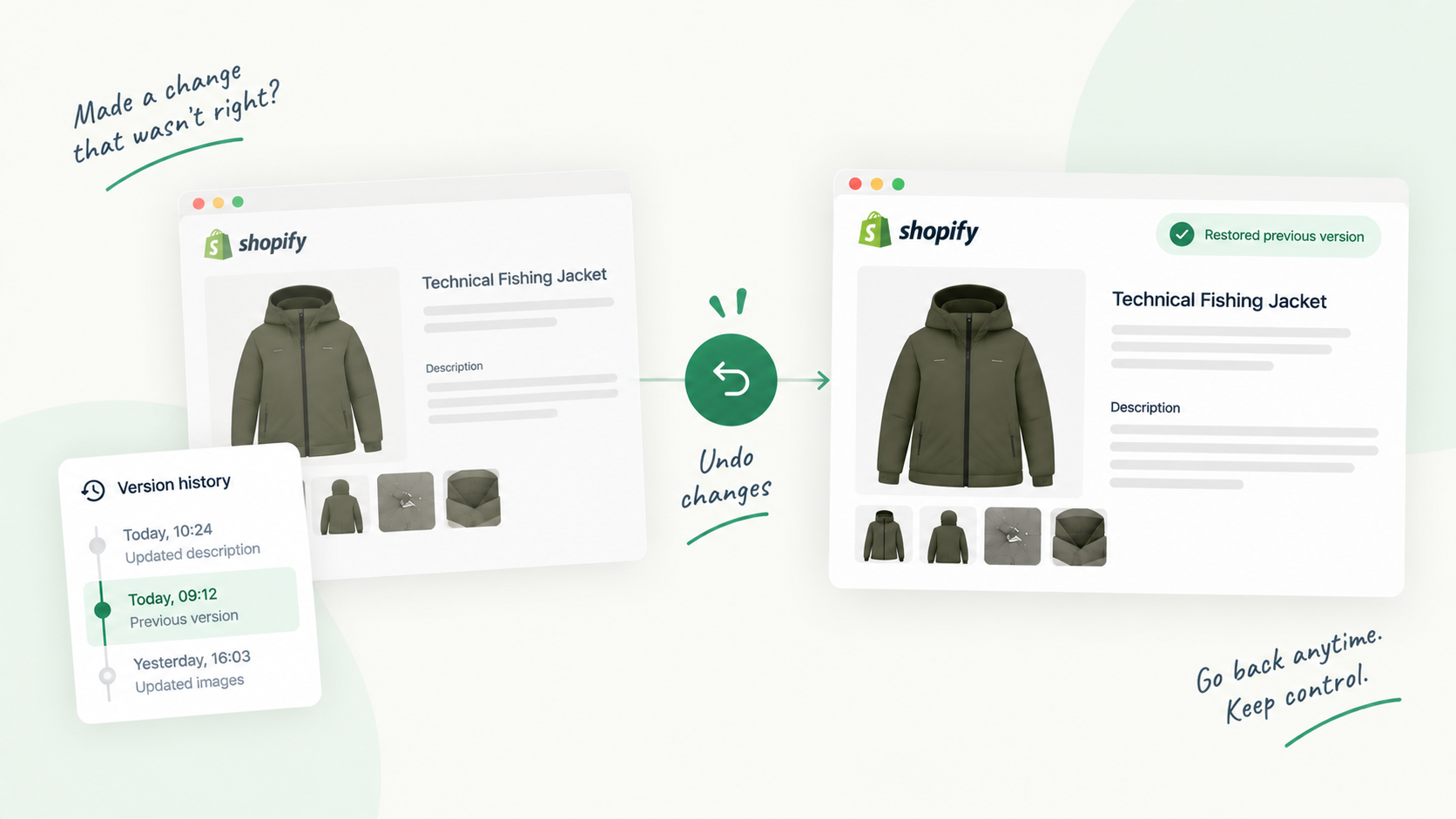
Key takeaways
- Before saving, you can still discard changes; after saving, Shopify keeps no earlier version of the field.
- Stop the source first (the import, the app, the automation), then recover, or you will fix the same pages twice.
- The old text can survive in your own exports, backup apps, the Wayback Machine or a translation, but not in Google's cache, which no longer exists.
- An approval step and a real version history turn the next bad edit into a restore, not a rewrite.
What Shopify lets you undo, and what it doesn’t
There is exactly one moment when undoing a product edit is easy: before you press Save. While the product form has unsaved changes, you can discard them and the page goes back to its saved state. Inside the description editor, the usual keyboard undo also works on what you just typed.
After Save, the previous value is gone from the admin. Products have no revision list, no Timeline like orders and customers have, and no “restore previous version” action. The same applies to collections, pages, blog articles, SEO titles, meta descriptions, tags, metafields and translations. The bulk editor and CSV imports write straight to the live product too, so they follow the same rule.
What Shopify does give you is the store activity log (Settings), which shows recent admin actions with the user and the time. It tells you who and when, not what it said before.
Three common scenarios
A teammate overwrote a description
Someone opened the product to fix a typo in the sizing section and pasted in a new draft of the whole description, or edited the wrong product. This is the most common case and usually the easiest: one product, one field, a clear time.
A bulk edit or CSV import went wrong
A spreadsheet with the wrong column order, a find-and-replace that matched more than intended, or an import run with “Overwrite products with matching handles”. Shopify’s documentation is explicit on this last one: with that option, a blank non-required column in the file overwrites the matching value on the product as blank. One bad file can empty the SEO description of every product it touches.
An app rewrote your SEO fields
An SEO or AI writing app with write access to products ran on the whole catalogue, and your hand-written meta descriptions are now generic. In the activity log, changes made by apps or background jobs can appear with “Shopify” as the actor rather than a person, which is normal but makes the trail harder to read.
The first hour: stop, record, then recover
The order matters. If you start restoring while the cause is still active, you will do the work twice.
- Stop the source: pause the app, cancel the automation, hold further imports
- Don’t re-save the affected products until you have the old text
- Note the time, the products and the fields that changed
- Open the store activity log and record who and when
- Tell the team which products are being fixed, so nobody edits them in parallel
- Recover the previous text from the sources below
For an app, check its own settings before anything else. Some apps keep a log of what they changed or offer their own revert, and that is by far the fastest route when it exists.
Where the previous text can still be
Google’s cache is not an option any more: plan on your own copies first.
Work down this list, from the most reliable source to the least.
Your own product export. If someone exported products to CSV before the change, the Description, SEO title and SEO description columns hold the previous values. This is why a scheduled weekly export is worth the five minutes.
A backup app. If the store runs one, restore only the affected products and fields, not a full snapshot, or you will roll back unrelated work.
The file that caused the damage. It doesn’t contain the old text, but it tells you exactly which handles and columns were touched, which is your list of pages to fix.
Translations. If only the default language was overwritten, the translated versions may still carry the previous content. Settings, Languages, Export gives you a CSV of the current translations, and a translation of the old description is a much better starting point than a blank page.
The Wayback Machine. The Internet Archive captures many public pages. Look up your product URL on web.archive.org; if a snapshot exists from before the change, the description is in it. Popular products on established stores are more likely to have been captured than new or low-traffic ones.
Other copies of the storefront. A colleague’s browser tab left open since yesterday, a supplier’s or marketplace listing that copied your text, a product feed file, an email campaign that quoted the description. None of these is systematic, but any of them can hold the exact text you need.
What doesn’t work: Google’s cached pages. Google removed the cached link from its results in 2024 and has since retired the cache: operator as well. Search results may still show an old snippet for a while, but that is a fragment at best, not the full description.
Once you have the old text, restore it field by field. If you re-import a CSV, keep only the handle, the columns Shopify requires and the columns you are restoring, so blank cells can’t overwrite anything else.
Talking to the person who made the edit
Most bad edits are made by someone who was trying to help. The goal of the conversation is to change the process, not to find a culprit.
- Show the before and after side by side, with the time of the change.
- Ask what they were trying to do: often there was a real problem (an outdated claim, a missing size) that the restore will bring back.
- Agree on who reviews that kind of change next time.
This is where attribution matters. The activity log may give you a name, but on a store where several people and several apps write to products, “who changed this field, and what did it say before” is hard to answer from Shopify alone.
Preventing the next one
Two things turn an incident into a routine fix: nothing reaches the storefront without a second pair of eyes, and every version is kept.
An approval step. With Vetta’s approval workflow, new versions of products, collections, pages and articles are proposed, by a person, a CSV import or an AI agent, and only go live once a reviewer approves. The reviewer sees a word-by-word diff of each field against what is live, in each language, and can approve, request changes or reject with a note. A CSV import shows an estimate of the versions it will create before it runs, and every row lands in review rather than on the storefront. AI agents connected over MCP can propose but have no way to publish.
A version history. Vetta’s version history keeps every version of each tracked resource, and restoring one adds a new version on top, so the history is never overwritten. Versions that went through Vetta carry their author and reviewer. Edits made straight in the Shopify admin, or by another app with write access, are captured too, as dated versions marked “Edited in Shopify”: you get the previous text back even when the change bypassed the review step, and you can cross-check the activity log for the person.
Alongside any tool, do the housekeeping: review which apps have write access to products and remove the ones you no longer use, keep direct product editing to the people who need it, and keep that weekly export running. The next time a description disappears, you want the answer to be “restore it”, not “does anyone remember what it said?”.
Sources and references
- Activity logs in the Shopify adminShopify Help Center
- Using CSV files to import and export productsShopify Help Center
- Backups and duplicationShopify Help Center
- Wayback MachineInternet Archive

Hugo built his first Shopify stores around 2015, while studying management and accounting, after teaching himself to code as a teenager. He then specialised in digital marketing at ESCEN in Bordeaux and has worked with clients since 2018, first in web communication, then as a webmaster. Since 2020 he has led IT projects at Rodhouse, including its full migration to Shopify in 2023, and is now its Tech Lead. Vetta grew out of a problem he kept meeting with clients: content changed by people nobody had checked, with no way back. Away from the screen, he travels, keeps a close eye on investing and new technology, and spends as much time as he can on the water.
Frequently asked questions
Can I undo a product description change in Shopify?
Only before you save, by discarding the unsaved changes. Once the product is saved, there is no undo and no list of earlier versions in the admin. You need a copy from outside the admin, such as a CSV export, a backup app or an archived copy of the page.
Can I still use Google's cache to find my old product page?
No. Google removed cached page links from its results in 2024 and has since retired the cache: operator as well. The Internet Archive's Wayback Machine is the main public alternative, if it captured the page.
How do I find out who changed a product in Shopify?
Check the store activity log in Settings. It lists recent admin actions with the user and time, although it does not show the previous content, keeps at most 250 entries, and can show "Shopify" as the actor for app or system changes.