
Key takeaways
- With “Overwrite products with matching handles” ticked, a blank cell erases the existing value, while a missing column leaves it alone.
- The safest SEO import file contains only the URL handle, Title, SEO title and SEO description columns.
- Save the file as UTF-8 with comma separators, or accented characters will be corrupted.
- Test on a handful of rows, diff the result, then run the rest: a started import can't be cancelled.
How Shopify’s product CSV import handles updates
Shopify’s product import does two jobs with the same file: it creates new products and it updates existing ones. What decides between the two is the handle, the unique identifier that also forms the product’s URL.
When you import, Shopify offers an option called Overwrite products with matching handles. With it ticked, any row whose handle matches an existing product overwrites the values in the matching columns. Without it, products that match an existing handle are ignored during the import. So for an SEO update, the option has to be on, and that is where the risks begin.
Three rules from Shopify’s documentation govern what an overwrite does:
| What is in your file | What happens to the live product |
|---|---|
| Column present, cell filled | Value replaced by the cell |
| Column present, cell blank | Value overwritten as blank |
| Column absent from the file | Value left unchanged |
There is a fourth, less obvious rule: if you include a column that depends on other columns you left out, existing data can be deleted. Shopify gives the example of variant columns such as SKU without their option columns.
Two more constraints to know before you start: the file can’t exceed 15 MB, and a product import can’t be cancelled once it begins.
The columns that matter for an SEO update
For updating SEO fields, you need very few columns:
- URL handle: the match key (older exports call it Handle). Never edit it in this file.
- Title: required when updating. Keep the exported value unchanged.
- SEO title: the page title shown in search results. Shopify’s CSV documentation allows up to 70 characters.
- SEO description: the meta description. Up to 320 characters.
Everything else (description, vendor, tags, variant, price and image columns) can be deleted from the file. Since absent columns are left untouched, a four-column file is the safest possible SEO import: it physically can’t blank a price or detach an image.
A note on empty SEO cells. Blanking the SEO title does not leave the product without a title in search results: Shopify falls back to the product title and description. But the result is a snippet built from copy written for the product page, which is rarely what you wanted. Treat every blank SEO cell as a deliberate decision, not a leftover.
A note on handles. Because the handle is the match key, you can’t rename a product’s URL through the import by editing the URL handle column: the row stops matching the original product. Change handles in the admin, where you can create a redirect from the old URL.
Excel, encoding and other ways a file goes wrong
Most CSV disasters happen in the spreadsheet, not in Shopify.
- Encoding. Shopify requires UTF-8 to prevent unexpected characters. In Excel, save as “CSV UTF-8 (Comma delimited)”, not plain “CSV”, or accents in “Crème” and “Größe” turn into garbage across the whole catalogue.
- Separators. Shopify’s help center asks you to check Excel’s export settings so values are separated by commas. Some regional Excel settings default to semicolons.
- Sorting. Shopify warns that sorting the file in a spreadsheet editor can break the link between products and their images. If you sort to work more comfortably, don’t import the sorted file with image columns in it.
- Formulas. A
=CONCAT(...)used to build meta descriptions must be converted to values before export. - Header names. Headers must match Shopify’s template exactly, so don’t rename or translate them.
A safe procedure for 500 products
Say you run a store with 500 products and want new meta descriptions on all of them. Here is the order of operations that keeps the blast radius small.
- Export all products to CSV as a backup, and keep it untouched
- Duplicate the export as your working file
- Keep only URL handle, Title, SEO title, SEO description
- Write or paste the new SEO copy
- Check lengths and look for blank SEO cells
- Save as CSV UTF-8 with comma separators
- Import 5 rows first, with overwrite ticked
- Open those 5 products and compare with the backup
- Import the remaining rows
- Re-export and diff against the backup file
Step 10 is the one people skip. A plain spreadsheet diff (or a diff in the terminal on the two sorted exports) shows every field that changed. If anything outside the SEO columns moved, you know right away, and your backup is the file to restore from.
When the bulk editor is the better tool
For a few dozen products, Shopify’s bulk editor can be simpler than a CSV round trip. Select products in the Products list, click Bulk edit, and use Columns to add the properties you want to edit; metafields can also be edited there. Check that the fields you need are offered as columns in your admin. The bulk editor works inside the admin, so there is no encoding or separator to get wrong, but it gives you no before and after comparison beyond what you remember.
Above a hundred rows, or when the new copy comes from an agency, a writer or an AI tool in a spreadsheet, the CSV route is usually faster. It just needs the checks above.
Sending the CSV to review instead of straight to the storefront
The procedure above has a weak point: step 9 publishes 495 changes at once, and review happens afterwards, if at all. For SEO copy written by someone else (a freelancer, an agency, an AI tool), you would rather read the changes before they go live.
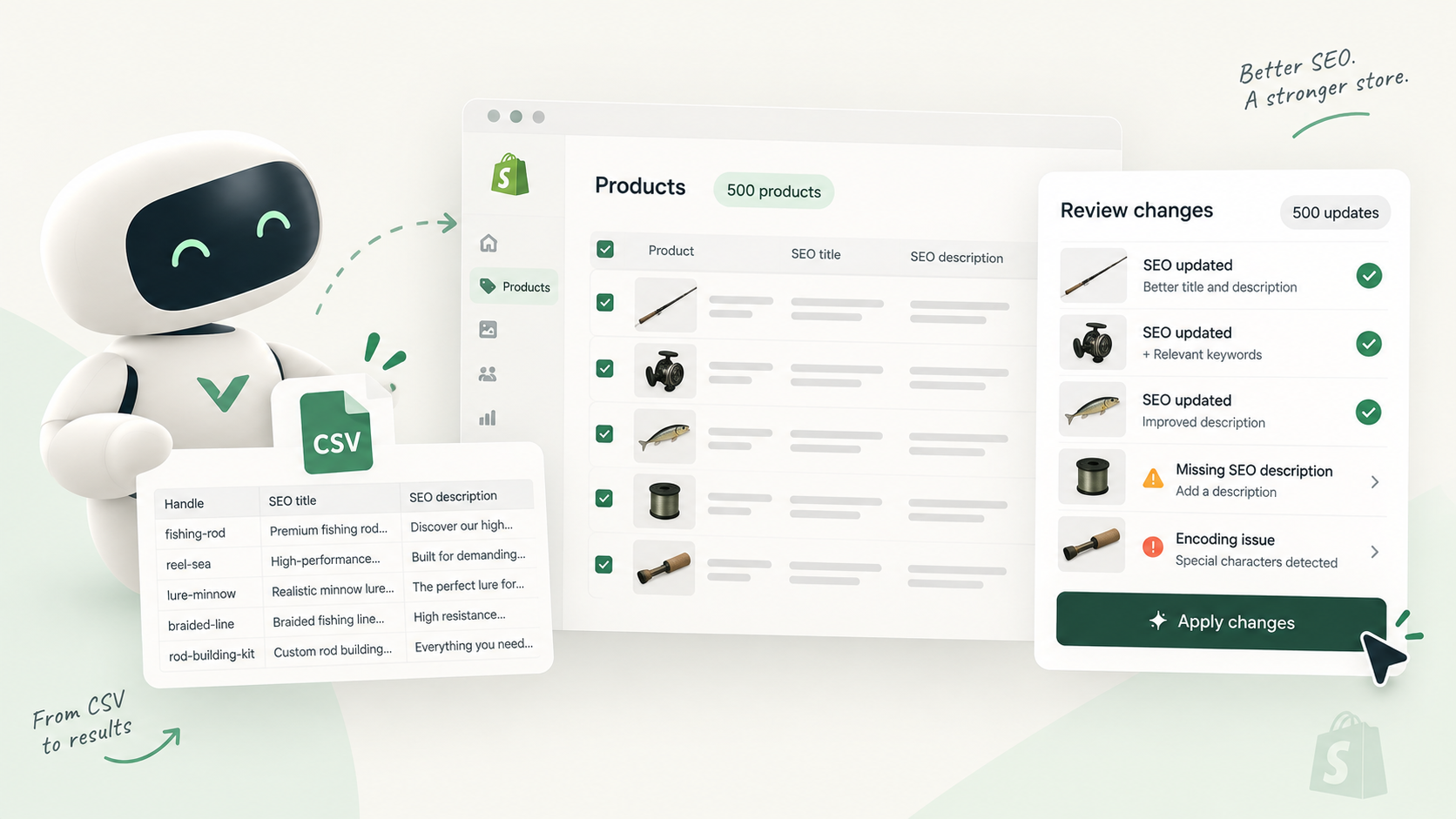
Vetta’s CSV import is built for that case. You map the spreadsheet’s columns to fields once (SEO title, meta description, tags, metafields, and translated fields with one column per language), and the mapping is saved for the next import. Before anything runs, the import shows an estimate of how many versions it will create and what it will cost. Each row then becomes a proposed version, not a live change: reviewers see a field-level diff of live against proposed, word by word, and approve, request changes or reject each one. Nothing reaches the storefront until it is approved.
Because every version is kept, including edits made directly in the Shopify admin, rolling back a bad batch means restoring the previous versions, not hunting for last month’s export. Credits are charged per approved and published version, which the pricing page explains.
Whichever route you choose, the rule is the same: keep the file small, keep a backup, test on a few rows and look at the diff before you trust the import.
Sources and references
- Importing products with a CSV fileShopify Help Center
- Using CSV files to import and export productsShopify Help Center
- Bulk editingShopify Help Center

Hugo built his first Shopify stores around 2015, while studying management and accounting, after teaching himself to code as a teenager. He then specialised in digital marketing at ESCEN in Bordeaux and has worked with clients since 2018, first in web communication, then as a webmaster. Since 2020 he has led IT projects at Rodhouse, including its full migration to Shopify in 2023, and is now its Tech Lead. Vetta grew out of a problem he kept meeting with clients: content changed by people nobody had checked, with no way back. Away from the screen, he travels, keeps a close eye on investing and new technology, and spends as much time as he can on the water.
Frequently asked questions
Can I update only the SEO fields of Shopify products with a CSV?
Yes. Export your products, keep the URL handle and Title columns plus SEO title and SEO description, edit those, and import with “Overwrite products with matching handles” ticked. Columns you leave out of the file keep their current values.
Why did my Shopify CSV import erase product data?
With the overwrite option on, a blank cell in a non-required column overwrites the existing value with a blank. Columns that depend on other columns missing from the file can also delete existing data. Removing unneeded columns avoids both.
What happens if I change the handle in the CSV?
Shopify matches rows to existing products by handle. A row whose handle no longer matches is not treated as an update to the original product, so change handles in the admin, where you can create a redirect, not in the import file.