
Key takeaways
- Shopify has no revision history for product, collection, page or article content: saving a field replaces the old value.
- Theme files have a per-file timeline and the store activity log records some admin actions, but neither stores your old copy.
- Scheduled CSV exports and duplicated products are snapshots, not history: they only help if they were taken before the change.
- A versioning layer keeps every version of every field, including edits made in the admin, and restores by adding a new version.
What Shopify actually keeps
People searching for “Shopify revision history” usually find a few features and assume it covers their copy. None of them does, but each is worth knowing.
Theme file history. In the theme code editor, each Liquid file has a timeline of earlier saved versions, and you can restore one. Shopify’s own documentation is clear about the limits: it restores one file at a time, it can’t recover deleted files, asset files don’t have it, and the history is finite. It also only covers theme code. Your product descriptions live in the admin, not in the theme.
Duplicated themes. Shopify recommends duplicating a theme before customising it, so you can discard your changes and start again. Again, this protects templates and settings, not catalogue content.
The store activity log. Under Settings, the store activity log lists recent actions taken by the store owner and users, with a date, a time and a name. It shows that something happened, not what a field contained before. It displays at most 250 entries, can’t be exported, and on a busy store it covers a short period.
Timelines. Orders, draft orders, customers and transfers each have a Timeline with history and comments. Products, collections, pages and blog articles do not.
What Shopify does not keep
Every text field you care about for SEO and conversion is overwritten in place when you save:
- product and collection titles, handles and descriptions;
- SEO title and meta description;
- page and blog article content;
- tags and metafields;
- every translation of the above.
There is no “previous versions” menu on a product, and no undo once the page is saved. If a colleague rewrites a description on Tuesday, the Monday version is gone unless someone made a copy.
On Shopify, the only history of your product copy is the one you build yourself.
Manual workarounds, and where each one stops
If you don’t want to install anything, these are the options. They are worth doing even if you later add a tool.
Scheduled product CSV exports
The product export (Products, then Export) gives you a CSV with the Description, SEO title and SEO description columns for every product. Export all products on a fixed day each week, name the file with the date, and store it somewhere your team can search. Shopify’s own backup guidance relies on exactly this kind of export.
The limits are real, though:
- it is a snapshot, so anything written and overwritten between two exports is lost;
- it covers products only: collections, pages and blog articles have no equivalent export in the admin, and Shopify’s own duplication guide has you copy pages and posts by hand;
- translations sit in a separate export (Settings, Languages, Export), so you need a second file per run;
- restoring means re-importing, and an import with “Overwrite products with matching handles” writes every column in the file, including blank ones, over the live data.
That last point matters. If you re-import a whole weekly export to fix one description, you also roll back every price, tag and SEO field that changed since. Restore from a file that keeps only the handle, the columns Shopify requires and the columns you want to put back.
Duplicating the product before a big edit
Before a rewrite, duplicate the product and leave the copy as a draft. It works for a single product and a single edit. It does not scale: drafts pile up, they can show up in internal searches and apps that read your catalogue, and nobody remembers which copy matches which date.
Copying text into a document
Some teams paste the current description into a shared doc before touching it. It is free and it works when everyone follows the rule. The first time someone is in a hurry, or an app writes to the field instead of a person, the chain breaks.
Backup apps
Shopify points merchants to backup apps in the App Store for anything beyond CSV exports. Most take periodic snapshots and can restore them. Check three things before choosing one: how often it snapshots, whether it covers pages, articles, metafields and translations, and whether you can restore a single field without restoring the whole product.
Why snapshots are not version history
A snapshot answers “what did the store look like at 2 a.m. on Sunday?”. Version history answers “what did this field say before the last change, who changed it, and what else did they change?”. Those are different questions.
With snapshots, a description can change three times between two backups and you will only ever see the last state. You can’t see who made the change, you can’t compare two states side by side without opening spreadsheets, and restoring is a bulk operation that affects more than the field you meant to fix. For a store where copy changes every few months, that may be enough. For a store running bulk SEO passes, CSV imports or AI agents on the catalogue, it isn’t.
What a versioning layer adds
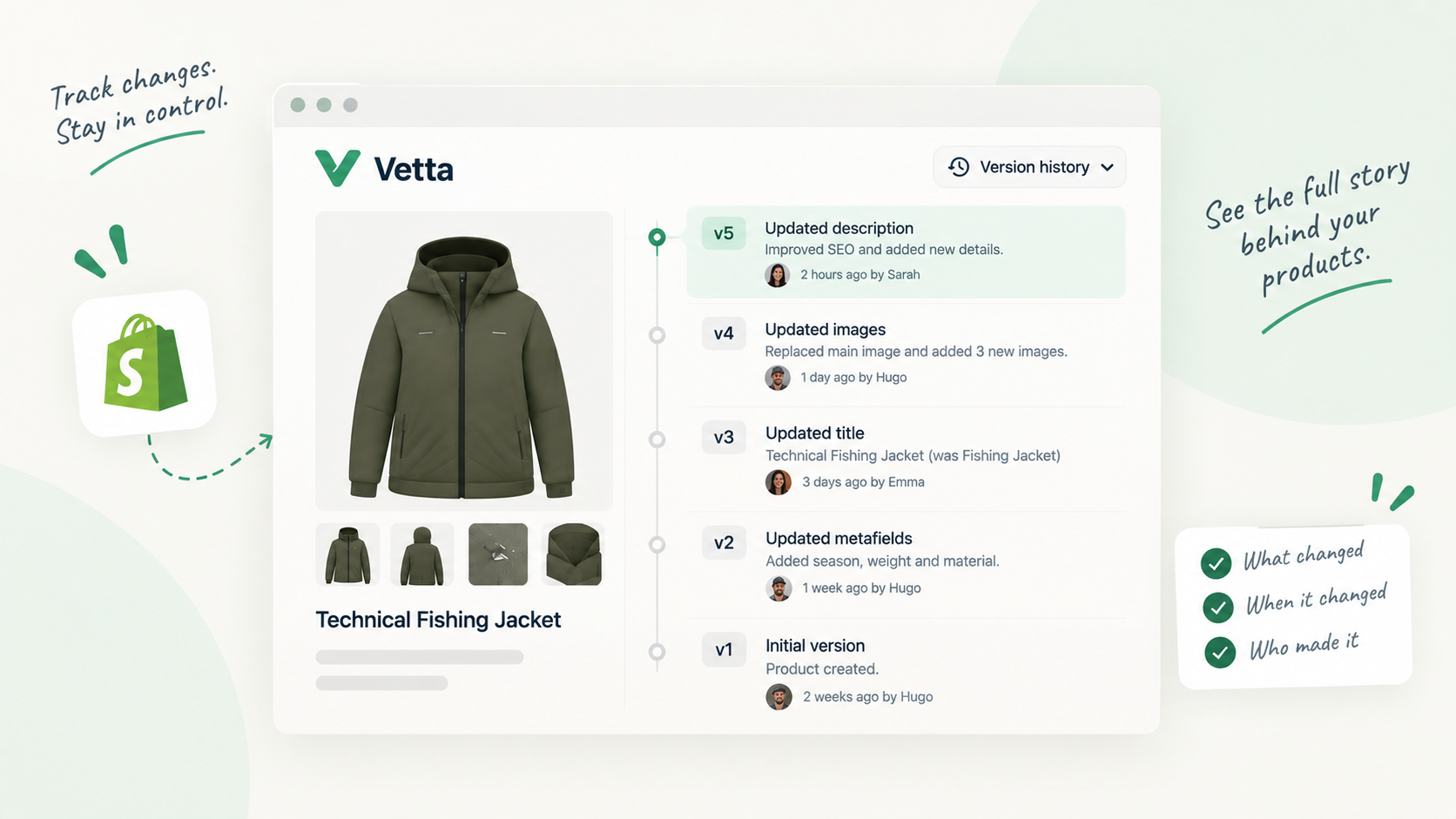
This is the gap Vetta fills. It keeps a version of every tracked product, collection, page and article each time the content changes, field by field: title, handle, descriptions, SEO title and meta description, tags and metafields, in the source language and in each published translation.
Three details matter in practice:
- Edits made straight in the Shopify admin are captured. Vetta reconciles what is live with what it already knows, so a change a colleague makes in the product editor becomes a dated version marked as edited in Shopify, alongside the versions that went through Vetta.
- Every version is kept. You open a product and see its versions in order, each one comparable with the live content word by word.
- Restoring never overwrites history. Rolling back to an earlier version adds a new version on top. The version you undid is still there if you change your mind.
History starts on the day you begin tracking a resource: Vetta records the current state as the first version, and anything before that is only recoverable from your own exports. That is one more reason to run a full product export before you set anything up.
If you want to compare this with what Shopify offers out of the box in more detail, see Shopify’s version history, compared.
A practical setup for this week
- Export all products to CSV today and file it by date
- Export translations from Settings, Languages
- Copy your key pages and blog articles into a document
- Decide who is allowed to edit product copy directly
- Start tracking your top-traffic products in a versioning tool
- Check the store activity log after any bulk change
None of these takes long, and together they cover the day someone asks “what did this page say last month?”. Without them, the honest answer on Shopify is that nobody knows.
Sources and references
- Activity logs in the Shopify adminShopify Help Center
- Editing theme codeShopify Help Center
- Backups and duplicationShopify Help Center
- Using CSV files to import and export productsShopify Help Center

Hugo built his first Shopify stores around 2015, while studying management and accounting, after teaching himself to code as a teenager. He then specialised in digital marketing at ESCEN in Bordeaux and has worked with clients since 2018, first in web communication, then as a webmaster. Since 2020 he has led IT projects at Rodhouse, including its full migration to Shopify in 2023, and is now its Tech Lead. Vetta grew out of a problem he kept meeting with clients: content changed by people nobody had checked, with no way back. Away from the screen, he travels, keeps a close eye on investing and new technology, and spends as much time as he can on the water.
Frequently asked questions
Does Shopify keep a history of product description changes?
No. The product page in the admin has no revision list, and products do not have a Timeline like orders or customers. When you save a new description, the previous one is not stored anywhere you can reach.
Can Shopify Support restore a previous product description?
Don't count on it. Shopify's help center describes no way to restore an earlier description, and its backup guidance points merchants to CSV exports and backup apps. Plan on keeping your own copy.
Is the theme version history the same thing?
No. Theme file history covers Liquid code in the theme, not the product, collection, page or article content stored in the admin. Rolling back a theme file never brings back an old description.