

Key takeaways
- You need three things: a private GitHub repository, a Claude subscription (Pro, Max, Team or Enterprise) and the Vetta app installed on your store.
- The repository holds two files: a CSV that lists the content to process and tracks its status, and an instructions file that Claude rereads on every run.
- Each run handles a single piece of content and sends it to Vetta as a proposal. Nothing is published without your approval.
- The Vetta connector must be selected in the routine, otherwise Claude has no way to read or propose your content.
- The number of runs per day is capped depending on your plan, so pick a frequency that stays under that cap.
The idea in one sentence
A Claude routine wakes up at a set time, reads a list of content in your GitHub repository, picks the next item to optimize, rewrites it using Vetta’s SEO recommendations, sends the proposal to Vetta, ticks the row off the list and goes back to sleep.
You stay in control in two places: the instructions file, which tells Claude how to write, and Vetta’s review queue, where nothing goes live without your say-so. This is the setup I use for the collection pages of a store I manage. It runs on its own, and my part is limited to reviewing.
What you need
Before you start, check that you have these three things.
| Item | Why | Where to get it |
|---|---|---|
| A GitHub account and a private repository | It stores the tracking file and the instructions. The routine clones it on every run and pushes its updates to it. | github.com (free) |
| A Claude Pro, Max, Team or Enterprise subscription | Routines are only available on paid plans. | claude.ai |
| The Vetta app installed on your store | It provides the connector Claude uses to read your content and propose versions. | Shopify App Store |
You don’t need any coding skills. Everything happens in the browser.
Step 1: create the private GitHub repository
- Sign in to GitHub and open github.com/new.
- Give the repository a name, for example
store-seo. - Select Private.
- Tick Add a README file, so the repository isn’t empty.
- Click Create repository.
Leave the main branch without a protection rule (that’s the default on a new repository). The routine has to be able to push the updated tracking file to it, and Claude Code refuses to push to a protected branch.
Step 2: add the CSV tracking file
The tracking file is the routine’s to-do list. Each row is a piece of Shopify content, and the columns show whether it has been processed, whether it’s in progress and where its proposal stands in Vetta.
Download the suivi-seo.csv template
Type,Handle,Title,Optimized,OptimizedAt,WorkingNow,WorkingSince,VettaStatus,VettaProposalUrl
product,stainless-steel-water-bottle-750ml,Stainless steel water bottle 750 ml,NO,,NO,,,
product,insulated-water-bottle-500ml,Insulated water bottle 500 ml,NO,,NO,,,
collection,water-bottles,Water bottles,NO,,NO,,,
page,shipping-and-returns,Shipping and returns,NO,,NO,,,
You only fill in the first three columns:
Type:product,collection,pageorarticle;Handle: the end of the content’s URL (in/products/stainless-steel-water-bottle-750ml, it’sstainless-steel-water-bottle-750ml);Title: the title, so you can find your way around.
Put NO in Optimized and WorkingNow and leave the rest empty: Claude fills in those columns. Row order matters, because the routine always takes the first unprocessed row. Put your priority content at the top, the pages that get traffic or sell best.
To get a quick list of your handles, export your products from the Shopify admin (Products > Export) and copy the Handle column.
To add the file to the repository, click Add file > Upload files on the repository page, drag in suivi-seo.csv, then click Commit changes. Keep this exact name, because the instructions refer to it.
Step 3: add the instructions file
The instructions file is the routine’s brief. It describes what happens during a run (lock the row, read the content, propose, update the CSV) and your writing rules.
Download the instructions-seo.md template
The template works as is, but it’s meant to be edited. The sections marked “Customize” matter most:
- What to optimize: SEO title, meta description, description, image alt text. Remove anything you don’t want changed.
- Writing rules: describe your brand’s tone, how formal you want to be and the words to avoid.
One rule is not up for debate, and the template enforces it: Claude must never invent a feature, material or certification. It only uses what’s already in your content. Almost all the typical errors in AI-written product pages come from that.
Add the file to the repository the same way (Add file > Upload files), named instructions-seo.md. To edit it later, open it on GitHub and click the pencil icon. The routine will read the new version on its next run.
Step 4: connect Vetta to Claude
Claude can only read your content and propose versions through the Vetta connector. If you haven’t done it yet:
- In Vetta, open Settings > MCP server and copy the server URL.
- On claude.ai, go to connectors and add a custom connector with that URL.
- Sign in with your Vetta account when Claude asks you to.
The Shopify MCP server page covers what the connector lets Claude do, and what it doesn’t: there is no publish tool.
Step 5: create the routine
Open claude.ai/code/routines. You can also get there from Claude Code, through the Routines item in the left-hand menu. (The screenshots below show the French interface.)
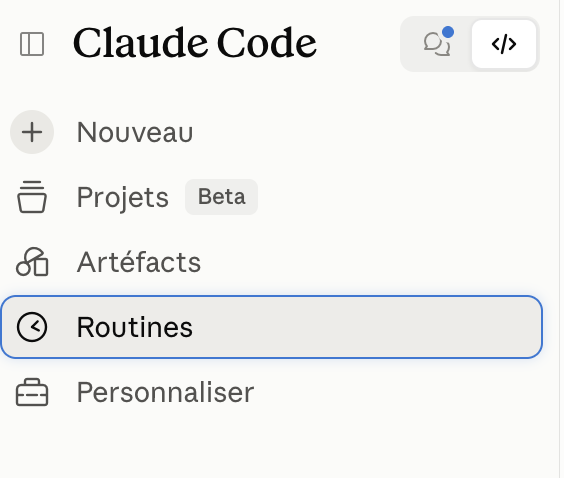
Click New routine in the top right corner.

Then fill in the form.
The name. Something descriptive, such as “Store SEO: one item per run”.
The prompt. It has to stand on its own: nobody will be around to answer Claude’s questions during the run. This one points to the instructions file, so you can adjust everything from GitHub without touching the routine:
You are optimizing the SEO of my Shopify store, one piece of content at a time.

1. Read the instructions-seo.md file at the root of the repository and follow it to the letter.
2. The tracking file is suivi-seo.csv, at the root of the repository.
3. Use the Vetta connector to read content and propose new versions. You never publish anything.
4. Handle ONE piece of content only, then stop.
5. Commit the changes to suivi-seo.csv directly to the main branch and push them. Do not create a claude/ branch or a pull request.
6. Finish with a summary: the content you handled, what changed, and the Vetta review link.
Point 5 matters. By default, a routine pushes its work to a branch whose name starts with claude/. The CSV on main would then never be updated, and the routine would process the same content on every run.
The repository. Select your private repository. If Claude doesn’t have access to your GitHub account yet, the form offers to connect it.
The trigger. Choose a schedule and a frequency: hourly, daily, weekdays or weekly. For a custom pace, see the next section.
The connectors. This is the step not to miss. Check that Vetta - AI SEO Content Review appears in the Connectors section. Without it, Claude can neither read your content nor send a proposal, and the run does nothing useful.
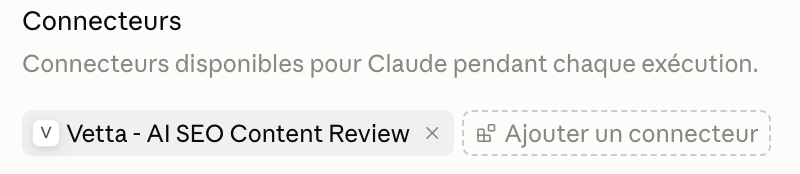
All your connectors are included by default. Remove the ones the routine doesn’t need (Gmail, Drive, Shopify…): during a run, Claude can use every tool of an included connector, write tools included, without asking for permission.
Save the routine, then start it straight away from its page by clicking Run now, so you can test it without waiting for the scheduled time.
Step 6: check the first run
Each run opens as a regular Claude Code session. Open the first one and read it all the way through. A green dot only means the session started and finished without a technical error, not that the task succeeded.
Then check three things:
- In GitHub,
suivi-seo.csvhas a new version, withOptimized = YESon the first row. - In Vetta, a proposal is waiting in the review queue.
- You’re happy with the proposal.
If the tone or length is off, fix instructions-seo.md now, before the routine handles twenty items the same way. In Vetta, you compare each proposed field with the live version, then approve, ask for changes or reject.
Choosing the frequency: cron expressions to copy
The web form only offers preset frequencies. For a specific pace, pick the closest frequency, then open Claude Code in a terminal, run /schedule update and give the cron expression you want, along with your time zone (for example “London time”). The minimum interval is one hour: anything more frequent is refused.
| Pace | Cron expression | Runs per day |
|---|---|---|
| Every hour | 0 * * * * |
24 |
| Every 2 hours | 0 */2 * * * |
12 |
| Every 3 hours | 0 */3 * * * |
8 |
| Every 4 hours | 0 */4 * * * |
6 |
| Every 6 hours | 0 */6 * * * |
4 |
| 4 times a day during office hours (9am, 12pm, 3pm, 6pm) | 0 9,12,15,18 * * * |
4 |
| Every 2 hours from 8am to 6pm, weekdays | 0 8-18/2 * * 1-5 |
6 |
| Once a day at 7am | 0 7 * * * |
1 |
| Mondays at 8am | 0 8 * * 1 |
1 per week |
The five fields read in order: minute, hour, day of the month, month, day of the week (1-5 = Monday to Friday). Since the routine handles one item per run, the last column also tells you how many pieces of content get optimized per day.
The daily run cap
Routines have a cap on runs per day, on top of your plan’s usual usage limits. Historically it was 5 runs per day on Pro, 15 on Max and 25 on Team and Enterprise. Routines are still in preview and these numbers may change: your remaining quota is shown on claude.ai/code/routines.
Pick your frequency accordingly. On Pro, “every 4 hours” gives 6 runs, one too many: the last one is refused unless you have turned on usage credits. “Every 6 hours” or “4 times during office hours” stay within the limit. On Max, “every 2 hours” (12 a day) fits. Keep in mind that all your routines share the same cap, and that runs also count against your Claude usage like a normal session.
Why this setup holds up
The automation publishes nothing. Claude writes, Vetta keeps each proposal next to the live version, and a person decides. If a proposal makes up a detail, it stops in the review queue instead of landing on your product page. It’s the same principle as in why an AI agent should never publish to Shopify, applied to an agent that works while you sleep.
Tracking in GitHub has another advantage: every run leaves a commit. You know which content was processed and when, and you can set a row back to NO to have it processed again after changing the instructions.
Start with ten rows in the CSV and a modest frequency. Review the ten proposals. If you like them, add the rest of the catalogue.
Sources and references
- Automate work with routinesAnthropic · Claude Code documentation
- Introducing routines in Claude CodeAnthropic · blog

Hugo built his first Shopify stores around 2015, while studying management and accounting, after teaching himself to code as a teenager. He then specialised in digital marketing at ESCEN in Bordeaux and has worked with clients since 2018, first in web communication, then as a webmaster. Since 2020 he has led IT projects at Rodhouse, including its full migration to Shopify in 2023, and is now its Tech Lead. Vetta grew out of a problem he kept meeting with clients: content changed by people nobody had checked, with no way back. Away from the screen, he travels, keeps a close eye on investing and new technology, and spends as much time as he can on the water.
Frequently asked questions
Can the routine publish straight to my store?
No. The Vetta connector has no publish tool. Claude creates a version marked "to review" in Vetta, and a person approves it, asks for changes or rejects it.
Why only one piece of content per run?
To keep a pace you can actually review, and so that a badly worded instruction only affects one item at a time. If you don't like the first proposal, you fix the instructions file before the routine moves on to the next one.
What frequency should I pick on a Pro plan?
For a long time the daily run cap on Pro was 5. A routine every 6 hours (4 runs a day) stays under it. Beyond the cap, extra runs are refused until it resets, unless you have turned on usage credits.
Does my repository really need to be private?
Yes. The tracking file reveals your list of content and your Vetta review links. There's no reason to make them public.